Keep your photos in the folders you already use, then narrow them down by camera, lens, and focal length or search with on-device AI to find the one you need.
Keep every photo where it is, then choose the right way to find it.
01Regular search
Keep your photos where they are.
Register any photo folder and Libria creates thumbnails and search information locally on your Mac. You do not need to move photos into a separate library, and registered folders are handled with read-only access. Narrow your photos from the main search field.
02
Search by shooting details
Filter photos using EXIF information such as camera, lens, and focal length.
03
SmartSearch
Find photos by purpose from Smart Search in the sidebar.
04
On-device AI search
Use bundled models to search on your Mac using what is in a photo. Results vary with your photos and processing state.
05
Similar photos
Open photo details to view photos similar to the selected image together.
FAVORITES
Keep favorites close
Add photos you want to revisit to Favorites, then view them together in your library.
LIBRIA CONNECT FOR IPHONE
Your Mac photo library, on iPhone.
Libria Connect is a companion app that lets you use your photo library from iPhone while Libria is running on a Mac on the same local network.
Browse and search a photo grid
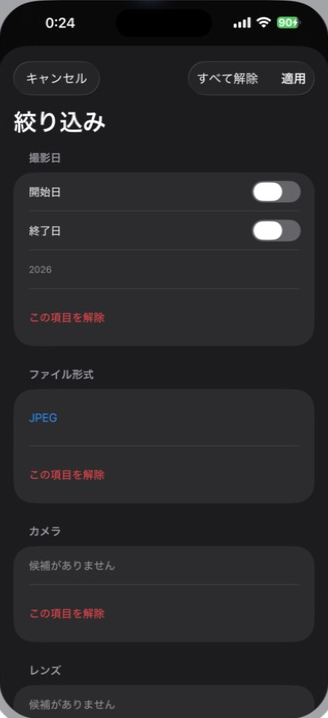
Filter by date, file format, and more
Save selected photos to iPhone
It does not publish your photo library to the internet or automatically sync photos to your iPhone. Connections are limited to the same local network as your Mac.
Refine with filtersBrowse the gridPreview and save
ON YOUR MAC
On-device AI search that doesn’t upload your photos
Photo recognition and search run on your Mac, and on-device AI search uses bundled models. Libria does not upload your photos to cloud AI services. There is no Libria account, advertising, or user-tracking features. Mac App Store product information and purchase restoration may require a network connection.
Try it free for 14 days, then unlock it with a one-time purchase.
The 14-day free trial starts only when you choose to begin it, never automatically. Continue with a one-time purchase with no monthly fee. You can restore a previous purchase. See current pricing in the Mac App Store.
MACOS
Requirements
macOS 14.0 or later
Apple Silicon Mac
On-device AI search requires a 14-day free trial or one-time purchase, plus prepared AI search data for the relevant photos.
Supported files
JPEG
RAW formats supported by macOSSupport for every RAW format is not guaranteed.
At least 8 GB of free storage is recommended for installation and initial processing. Local library storage grows depending on the number and format of registered photos and the previews created. Additional free storage is required for larger libraries.
FAQ
Frequently asked questions
Are my photos uploaded to the cloud?
Libria does not upload your photos to cloud AI services. Photo recognition and search run on your Mac.
Does Libria change my original photo files?
Registered folders are handled with read-only access. Libria creates thumbnails and search information locally.
Do I need to move photos into a special folder?
No. Register the photo folders you already use.
Does Libria support RAW images?
It supports RAW images where macOS ImageIO can decode them. It may use an embedded preview or a same-name JPEG, and does not promise every RAW format.
Does on-device AI search need an internet connection?
Photo processing for on-device AI search runs on your Mac. Mac App Store-related actions, such as loading purchase information or restoring purchases, may need a connection.
Does the 14-day free trial start automatically?
No. It starts only when you choose to begin it in Purchase Information.
Can I still see my photos after the 14-day free trial ends?
Before a trial starts or after it ends, you can still browse existing library data, open settings, purchase, restore purchases, unregister folders, and delete local data.
Is the one-time purchase a subscription?
No. The one-time purchase has no monthly fee. See the Mac App Store for current pricing.
Can I restore a purchase?
Yes. Select Restore Purchases in Purchase Information.
Can I use Libria on iPhone?
Yes. Libria is the Mac app, and Libria Connect is its iPhone companion. Use Libria Connect on the same local network as your Mac to browse, search, filter, and save photos. A Windows version is not currently offered.